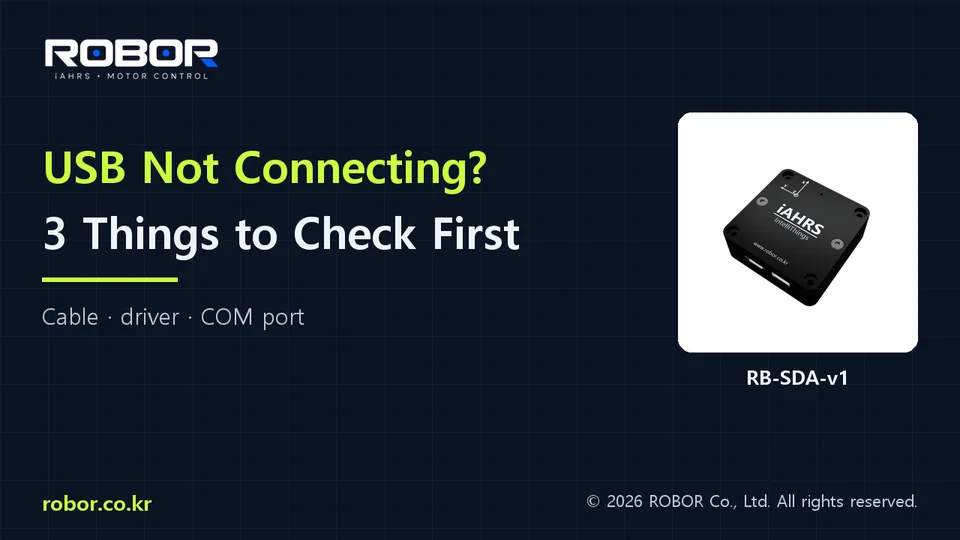
Three checks for your USB AHRS connection
0:47 · English narration · YouTube Shorts
1. Check the model and cable
Confirm USB support and use a data-capable cable. Follow the model manual for power requirements. A board-level UART interface is not a direct USB connection.
2. Match the USB driver
Identify the USB device in Device Manager. CP210x devices use the official Silicon Labs VCP driver. For another USB chip, follow the relevant model manual and manufacturer instructions.
3. Select the COM port
In Windows, open Device Manager → Ports (COM & LPT). Select the port actually assigned to your sensor and the baud rate specified for your model. COM3 is only an example.
4. Verify live measurements
Check the receive status at rest, then gently tilt the sensor and observe the output. Confirm the sensor and equipment axes. A moving demo display does not prove a live device connection.
If it does not connect
Try another data cable and USB port. Close applications using the same COM port. Send the model, operating system, device listing, baud rate and error message through the support form.
Product information: ROBOR product catalog and model manuals. Always check your model and firmware.
Further reading: Silicon Labs CP210x VCP drivers